Beginner’s Guide
Install, activate, record, in under 5 minutes.
Real screenshots from the live build, plain-English steps, no jargon. Everything from installing the app to exporting your first edited recording.
Quick startinstall and activate in under 5 minutes
RECLION is a single Windows installer. You’ll download it, run it, paste your license key once, and you’re done. Your key is stored encrypted on your machine, so you won’t be asked again on the next launch.
- 1
Download the installer
Grab
Reclion Setup 1.0.0.exefrom your account dashboard at reclion.com/dashboard (~120 MB). - 2
Run the installer
Double-click the
.exe. If Windows SmartScreen shows “Windows protected your PC” with “Unknown publisher”, click More info then Run anyway. This warning is expected; see the note below for why. Pick an install folder (or accept the default), click Install, then Finish. The app launches automatically. - 3
Paste your license key
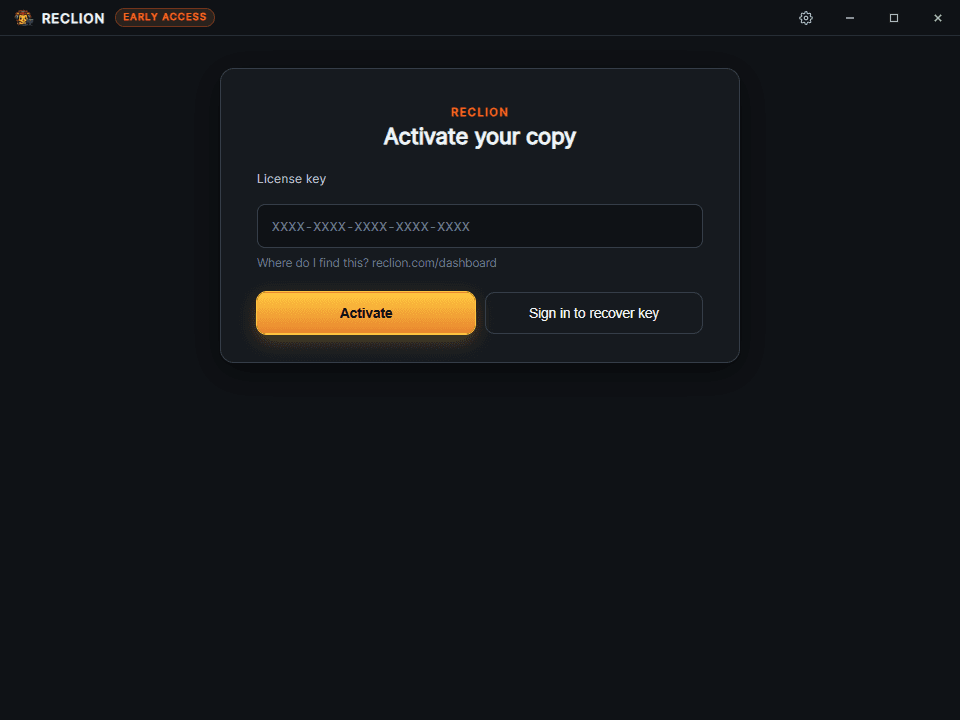
On first launch you’ll see the activation screen. Paste the 24-character key you received by email (format:
XXXX-XXXX-XXXX-XXXX-XXXX) and click Activate. The button stays grayed out until the key is fully typed in the right format. - 4
You're in
Activation takes 2 to 3 seconds. Once it succeeds you land on the main panel and you’re ready to record. The license is bound to this machine; you never enter the key again on this computer.
What you’ll see
About the “Unknown publisher” warning. Windows SmartScreen recognises apps signed with a code-signing certificate from a trusted Certificate Authority. Those certificates cost money, typically $200 to $700 per year, and they need a separate “reputation” period before SmartScreen stops warning users. As an independently funded one-time-purchase product, RECLION currently ships unsigned. The app itself is identical to a signed build; the warning is purely about Microsoft’s identity verification system, not anything in the binary. You can verify the download by checking the SHA-256 hash published next to the download link on your dashboard.
Internet is required only for activation.After that, RECLION runs fully offline for up to 30 days. It re-checks the license in the background when you’re online.
One license, one machine. Moving to a new PC? Open your dashboard, click Release device, then activate on the new machine. The same key won’t work on two computers at once.
The main panelset up before you record
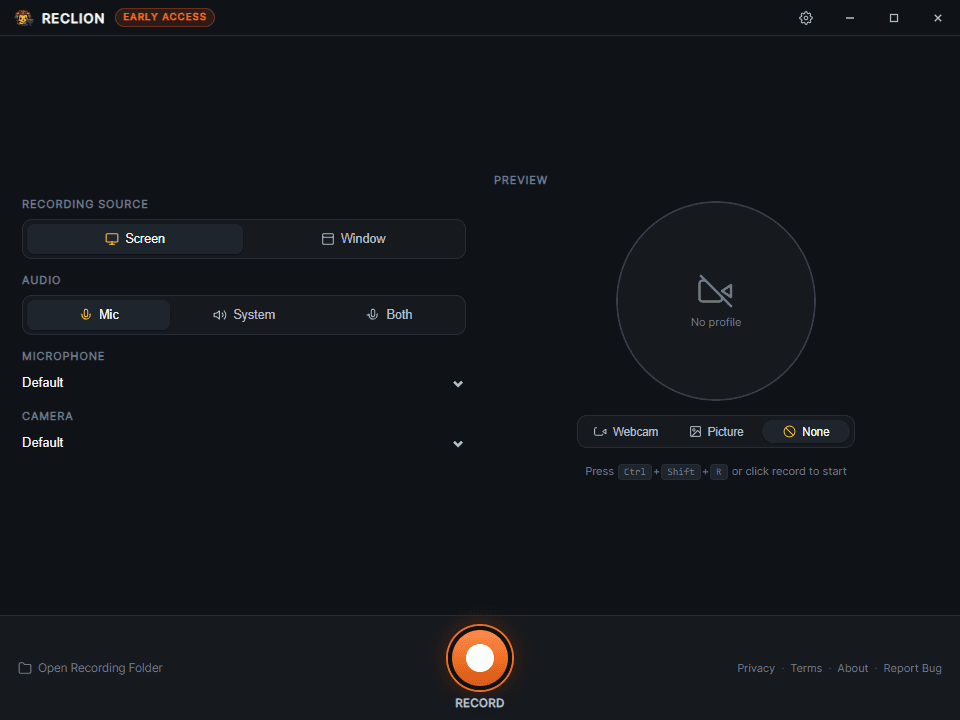
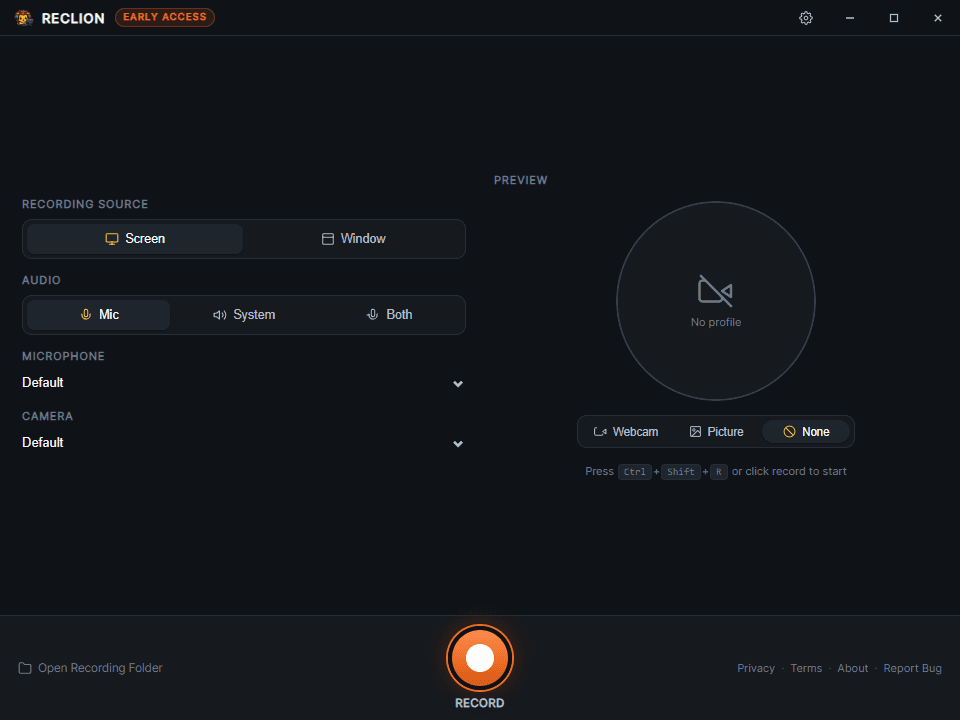
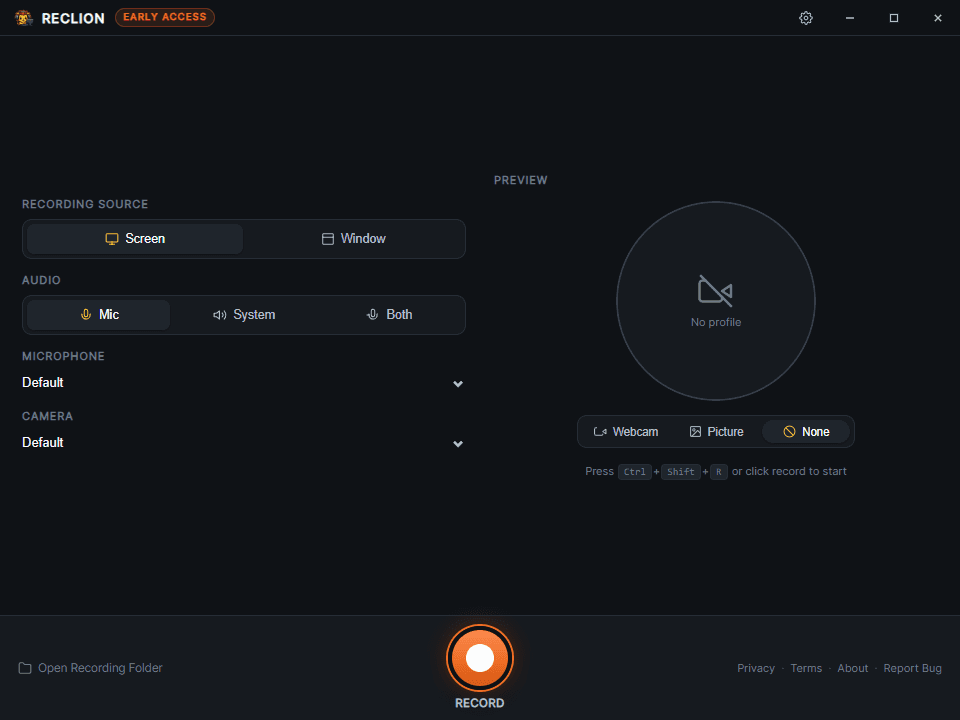
This is your launchpad. Pick what to record, how to record it, then hit the big orange button. Everything here is configured before recording starts; once you’re rolling, the floating bar takes over.
Field by field
Recording source: Screen / Window
Capture an entire display or a single application window. The dropdown switches accordingly. Multi-monitor setups list each display separately.
Audio: Mic / System / Both
Mic = your microphone only. System = whatever is playing through your speakers (captured via WASAPI loopback). Both= mixed into one track. Pick “Both” for tutorials where you narrate over a video that’s playing.
Microphone & Camera dropdowns
Pick the specific input device. “Default” follows your Windows default; explicit devices show their friendly names.
Profile preview (right side)
Live preview of the circular webcam bubble that gets composited into the recording. The toggle below picks Webcam (live camera), Picture(a still avatar, handy when you don’t want to be on camera), or None (no overlay at all).
Record button (orange ring, center)
Starts the 3-second countdown then begins recording. Ctrl+Shift+Rdoes the same thing globally; works even when RECLION isn’t focused.
Open Recording Folder (bottom-left)
Shortcut to where finished exports land:
Videos/Reclion/videos/by default. You can change this in Settings.
Settingsconfigure once, every recording uses it
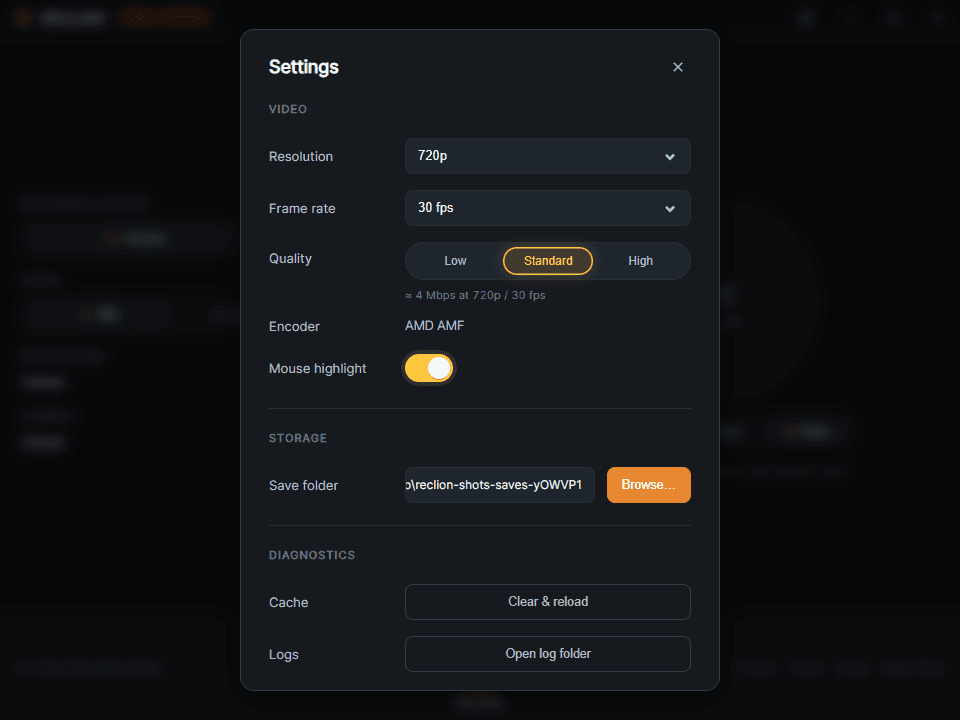
Open Settings via the gear icon in the top-right of the main panel. These choices persist between launches, so you only need to set them once.
What each setting does
Resolution: 720p / 1080p / 1440p / 4K
Output canvas size. Higher = sharper text and larger files. Most users want 1080p; pick 4K for content you’ll publish on YouTube; pick 720p for quick screen-share clips.
Frame rate: 30 / 60 fps
30 fps is the safer default. 60 fps doubles disk use and CPU but produces smoother motion (useful for game capture or fast cursor movement).
Quality: Low / Standard / High
Multiplies the bitrate by 0.6× / 1.0× / 1.5×. The caption underneath shows the live computed Mbps for the selected resolution and fps.
Encoder (read-only)
Detected automatically. NVIDIA NVENC / Intel QSV / AMD AMF if your GPU supports it; software
libx264as a fallback. You don’t pick this; RECLION picks the fastest encoder your hardware supports.Mouse highlight
When on, recordings show a soft halo around your cursor and a click ripple every time you click. Helpful for tutorials and demos.
Save folder
Where exports go. The
Browse...button opens the OS folder picker.videos/andscreenshots/subfolders are created automatically.
Don’t fiddle with the encoder. RECLION probes your hardware on first launch and picks the fastest path; manually overriding usually makes things worse.
The recording baryour in-flight controls
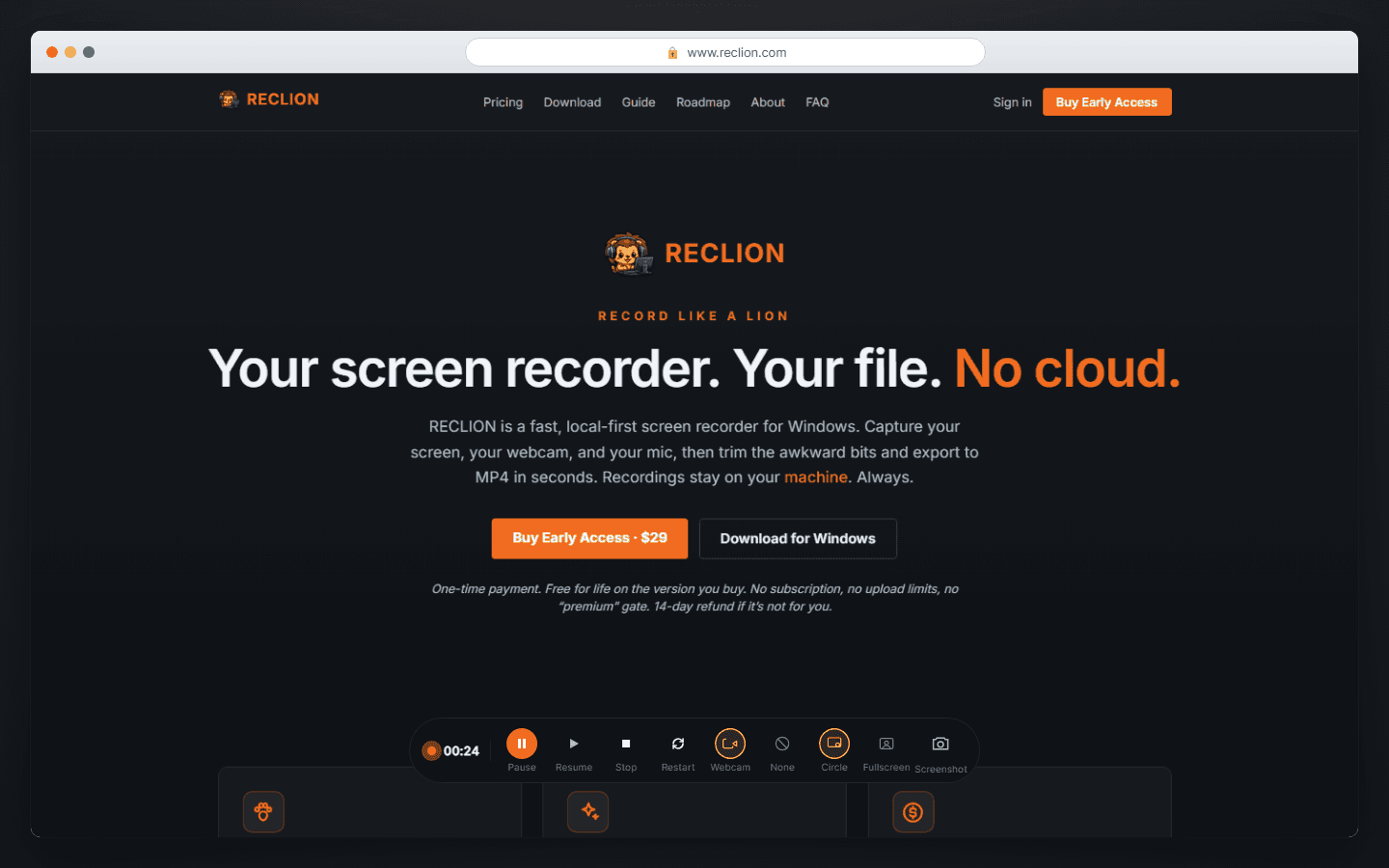
The moment recording begins, the main window hides and a small floating pill appears at the bottom of your screen. It’s always-on-top, draggable, frameless, and it doesn’t appear in its own recording (so it won’t show up in the final video). Every control you need mid-session lives here; you never need to alt-tab back to the main window.

What each button does
Red dot + timer (left)
Pulses while recording. Goes static amber when paused. The timer shows recording time minus paused time.
Pause / Resume / Stop
Three explicit buttons rather than a toggle, so the active state is unambiguous. Pause is the only one filled while recording. Ctrl+Shift+S stops globally.
Restart
Discards the current take and immediately starts a new recording with the same configuration: same source, resolution, fps, quality, mic, audio, webcam mode and layout. No preview, no temp file kept, no source picker, no countdown. Use this when you fumble the first take and want to redo it without losing momentum. The bar timer resets to 00:00; the bar, webcam, and cursor overlay all stay alive across the restart.
Profile mode: Webcam (or Picture) / None
Toggles the overlay visibility mid-recording. Only the mode you started in plus None are shown; the irrelevant third option is hidden so you don’t think it’s something you can swap into.
Layout: Circle / Fullscreen (Webcam mode only)
When you started in Webcam mode, two extra icons appear. Circle records the screen with the webcam composited as a floating circle (default). Fullscreen records the webcam as the entire frame. Swap either way mid-recording; both streams are captured at start, so the change is instant.
Screenshot
Saves a PNG of the current frame to
screenshots/immediately. Doesn’t interrupt the ongoing recording. The icon flashes orange when the file is written.
The bar auto-fits its content.If you start in “None” mode (no overlay), the bar shrinks because the Webcam / Picture / Circle / Fullscreen toggles are hidden. There’s no dead space; the pill grows or shrinks symmetrically from its center.
Drag it anywhere.Click and drag any part of the pill that isn’t a button to reposition it. RECLION remembers the position next launch.
A real-world example
Here’s what RECLION looks like when you’re recording a website, in this case capturing reclion.comitself. The browser window is the source you picked on the main panel; the floating pill at the bottom is the recording bar. Everything inside the window gets recorded; the bar does not (it’s content-protected).
Review & edittrim, cut, annotate before you export
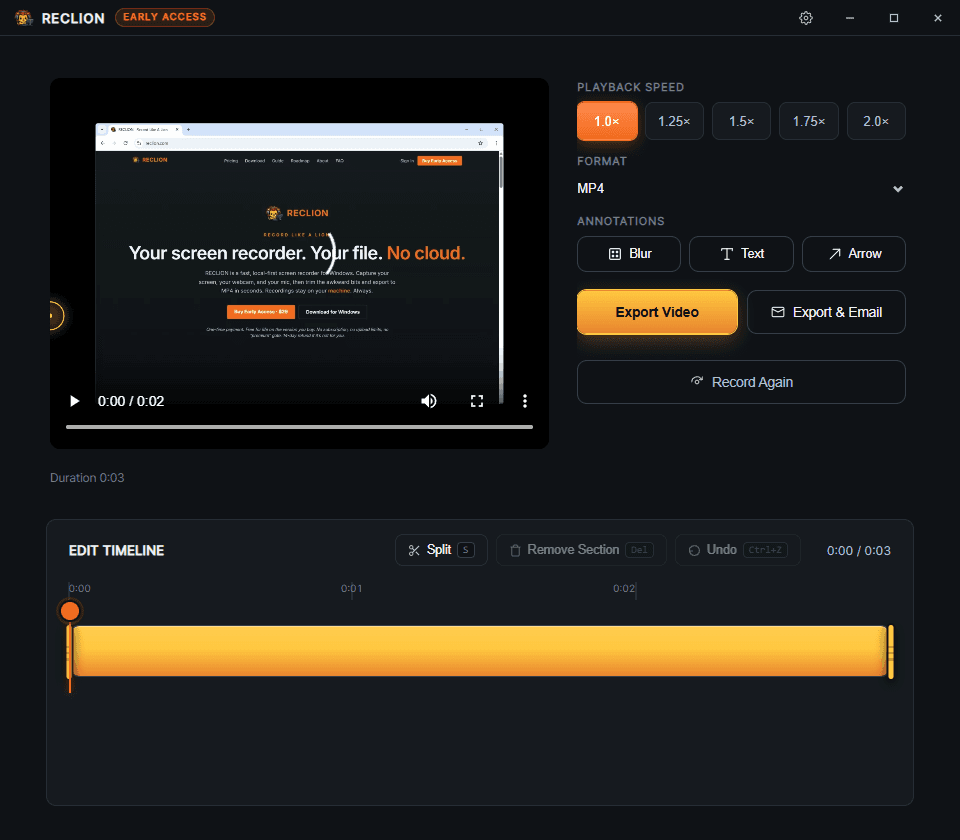
When you click Stop, RECLION loads your raw recording into Preview. Nothing has been exported yet.Here you scrub, set a playback speed, trim, split out sections you don’t want, and drop in annotations. Every decision is baked in only at the export step; the temp file stays untouched so you can iterate.
Right-side controls
Playback speed pills
1.0× / 1.25× / 1.5× / 1.75× / 2.0×. Affects both the in-app preview andthe exported file. FFmpeg stretches the video and pitch-preserves the audio so faster speeds don’t sound chipmunk-y.
Format dropdown
MP4 today. More formats slot into the same export pipeline if and when they’re added.
Annotations: Blur / Text / Arrow
Click a tool, then drag a region (Blur), click and type (Text), or drag from tail to tip (Arrow) over the video. The tool returns to idle on release; the annotation auto-selects so its delete badge and resize affordances are immediately visible. Click outside to deselect, or press Esc. Press Delwith one selected to remove it. Multiple annotations supported; they’re all baked in at export.
Export Video / Export & Email
Export Video renders the final file in your save folder. Export & Email additionally hands the file off to your OS mail handler with a pre-filled subject and body.
Record Again
Discards the current recording and returns to the main panel. The temp file is cleaned up.
Edit timeline
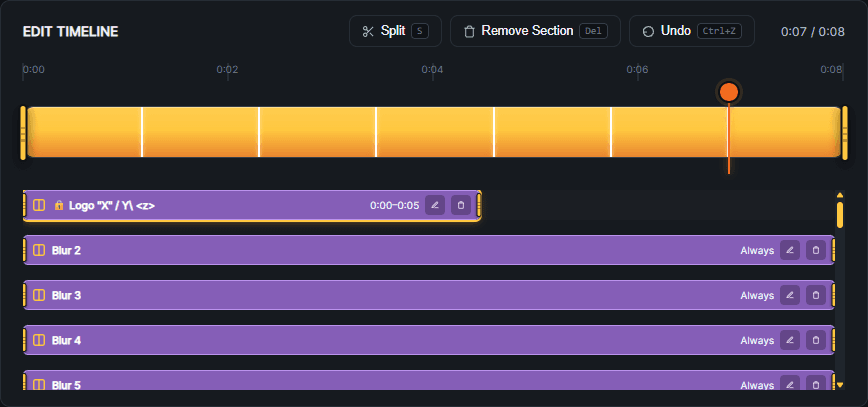
The timeline lives below the video. It has three layers: the ruler (with auto-spaced ticks like 0:00 / 0:13 / 0:25), the gold trim track with playhead and start/end handles, and one annotation row per band below.
Trim handles
Drag the gold handles on the trim track to chop off the start or end. Anything outside the handles isn’t included in the export.
Split / Remove section
Press S at the playhead to drop a marker. Press S again to mark the end. Del removes the marked range. Space plays/pauses. Cuts render as dark dashed bands inside the gold trim track; click any cut band to restore that section.
Undo
Ctrl+Z reverses the last edit. Works for trim, splits, and annotations.
Annotation bands
One row per annotation, color-coded: purple for Blur, pink for Text, orange for Arrow. Drag the body to slide the whole annotation along the timeline; drag a gold bumper on either end to resize it. Click the pencil to rename; Enter commits, Esc cancels. Click the trash to remove.
Exportname, save, share
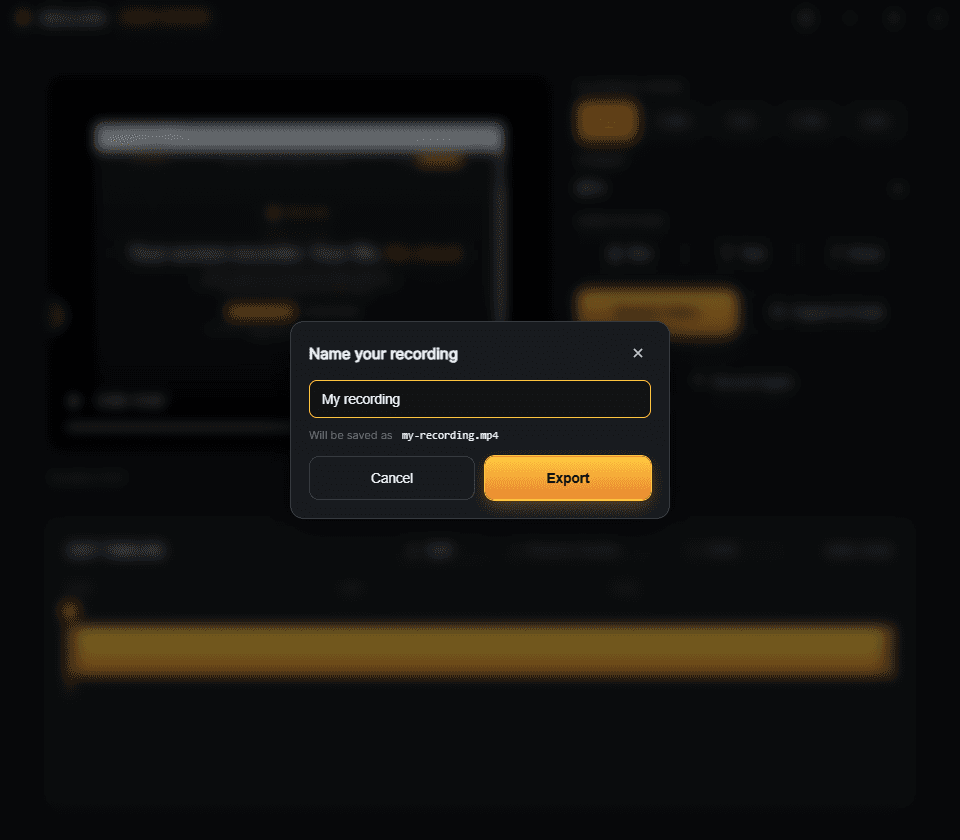
Triggered by the Export Video / Export & Email buttons. Just one decision: what to call the file. The slug under the input shows what gets written to disk, lowercased and hyphenated.
Inputs
Title input
Free-form text. The filename preview underneath updates live to show what gets written to disk: slugified (spaces become hyphens, special characters stripped, max 80 chars).
Cancel / Export
Cancel returns to the preview without changing anything. Export kicks off the FFmpeg encode using the cached hardware encoder. A progress bar shows percentage and ETA; most exports finish in under a minute.
Your raw temp recording is safe until you click Cancel or Record Again. If something goes wrong during export, you can re-export without re-recording.
Common workflowsrecipes for typical recordings
Three real-world scenarios you’ll probably hit in your first week. Each is a sequence of clicks. No theory, just “ do this, then this”.
A quick tutorial with voice-over
You want to record a 2 to 3 minute walkthrough of a software feature, with your voice narrating.
- Source: Window, pick the app you’re demoing.
- Audio: Mic. Camera: None.
- Settings: 1080p, 30 fps, Standard quality, Mouse highlight ON.
- Hit Record. Demo. Stop.
- In Preview: trim dead air at the start/end with the gold handles. Use Blur over any sensitive UI text.
- Export Video, name it, done.
Talking-head explainer
You're explaining something with your face on camera in a corner bubble.
- Source: Screen (whichever monitor you’re on).
- Audio: Mic. Camera: pick your webcam.
- Profile: Webcam. The bubble is draggable to any corner before you record.
- Hit Record. While recording, click Fullscreen in the bar to swap to webcam-fullscreen for an intro, then Circle to swap back.
- Stop, Preview, add a Text annotation with your name in the first 5 seconds.
- Export & Email if it’s going to a coworker.
Capturing gameplay or video
You want crisp 60 fps with the game's audio and your commentary.
- Settings: 1080p (or 4K if your GPU can handle it), 60 fps, High quality.
- Source: the game window. Audio: Both.
- Camera: None (or Webcam if you want a face-cam corner).
- Hit Record. Play. Stop.
- Preview is where you cut out the boring bits with Split: drop S markers around dead time, hit Del.
- Export Video at 1.0× or speed up the boring parts to 1.5× before export.
Quick screenshots without recording
RECLION isn't only for video; the Screenshot button on the recording bar is fastest.
- Start a recording (any source).
- Click the Screenshot icon on the bar to save a PNG instantly.
- Stop the recording, or just keep going if you need video too.
- Files land in
Videos/Reclion/screenshots/.
Keyboard shortcutsthe cheatsheet
Global shortcuts work even when RECLION isn’t focused (e.g. while you’re inside the app you’re recording). Local shortcuts only work in the Preview window.
Global
In Preview / Timeline
Where your files livepaths you should know
RECLION puts everything in two places: your save folder for finished exports and screenshots, and your AppData folder for license, settings, and logs.
Exports & screenshots
Default:
%USERPROFILE%\Videos\Reclion\, withvideos/andscreenshots/subfolders. You can change the root in Settings, Save folder. The “Open Recording Folder” link in the main panel jumps straight there.Settings & license
%APPDATA%\reclion\, holds your encrypted license blob, settings.json, and any custom Picture-mode avatars. Backing up this folder preserves your activation across reinstalls.Logs
%APPDATA%\reclion\logs\, daily-rotated log files. Useful if you ever need to send a bug report; the in-app footer “Report Bug” link will pre-fill an email. Attach the latest log if a crash is involved.Temporary recordings
Created under your OS temp folder (
%TEMP%) during recording. Cleaned up automatically when you Export, Cancel, or Record Again. Orphaned temps from crashes are detected on the next launch and offered for recovery.
License & reinstallwhat to do when...
...you reinstall on the same PC
No re-activation needed. The license blob in
%APPDATA%\reclion\survives normal uninstall/reinstall, so the second install boots straight into the main panel....you switch to a new PC
Open your dashboard at reclion.com, click Release deviceon the old machine’s entry, install RECLION on the new PC, activate with the same key. Releasing frees the slot; without it you’ll see “Device limit exceeded” on the new machine.
...you wipe AppData or do a clean Windows install
The new install will show the activation screen. Paste your key; it’ll re-bind to the new machine ID. If the previous binding is still in your account, release it from the dashboard first.
...you're offline for more than 30 days
RECLION will prompt for an internet connection to re-validate. Heartbeat happens silently in the background as soon as you’re back online; nothing else is required.
Don’t share your license key. Each key activates exactly one device at a time. If a coworker needs RECLION, they need their own license. Sharing a key locks you out the moment they activate.
FAQthe questions everyone asks
Why is Windows SmartScreen showing "Unknown publisher"?
Windows checks every downloaded executable for an Authenticode signature from a trusted Certificate Authority. Those signatures require a code-signing certificate that costs $200 to $700 per year from CAs like DigiCert or Sectigo, and even after you buy one, Microsoft’s SmartScreen system requires hundreds of installs before the warning fully goes away (unless you pay extra for an Extended Validation cert). RECLION today ships unsignedto keep the one-time license affordable instead of bundling an annual signing cost into every customer’s price.
The “Unknown publisher” warning is about Microsoft’s identity verification, not malware. The binary you downloaded is identical to what you’d get with a signed build: same code, same behaviour. Click More info then Run anywayto proceed. If you want extra assurance, verify the file’s SHA-256 hash matches what’s published on the download page.
Where is the recording while I'm recording?
%TEMP%. It’s not the final video; there is no encoding pass yet, just frame capture. The encode happens when you click Export.The recording bar is on top of what I want to record. Can I move it?
Can I record system audio without my microphone?
How big are the files?
Can I edit a recording I exported a week ago?
The encoder shows libx264. Why isn't my GPU being used?
libx264. Update your GPU drivers and relaunch; the probe runs again.How do I report a bug?
roar@reclion.comwith your machine info. If it’s a crash, attach the latest log from %APPDATA%\reclion\logs\.Need to dive deeper? Compare RECLION to alternatives or check the full feature reference.